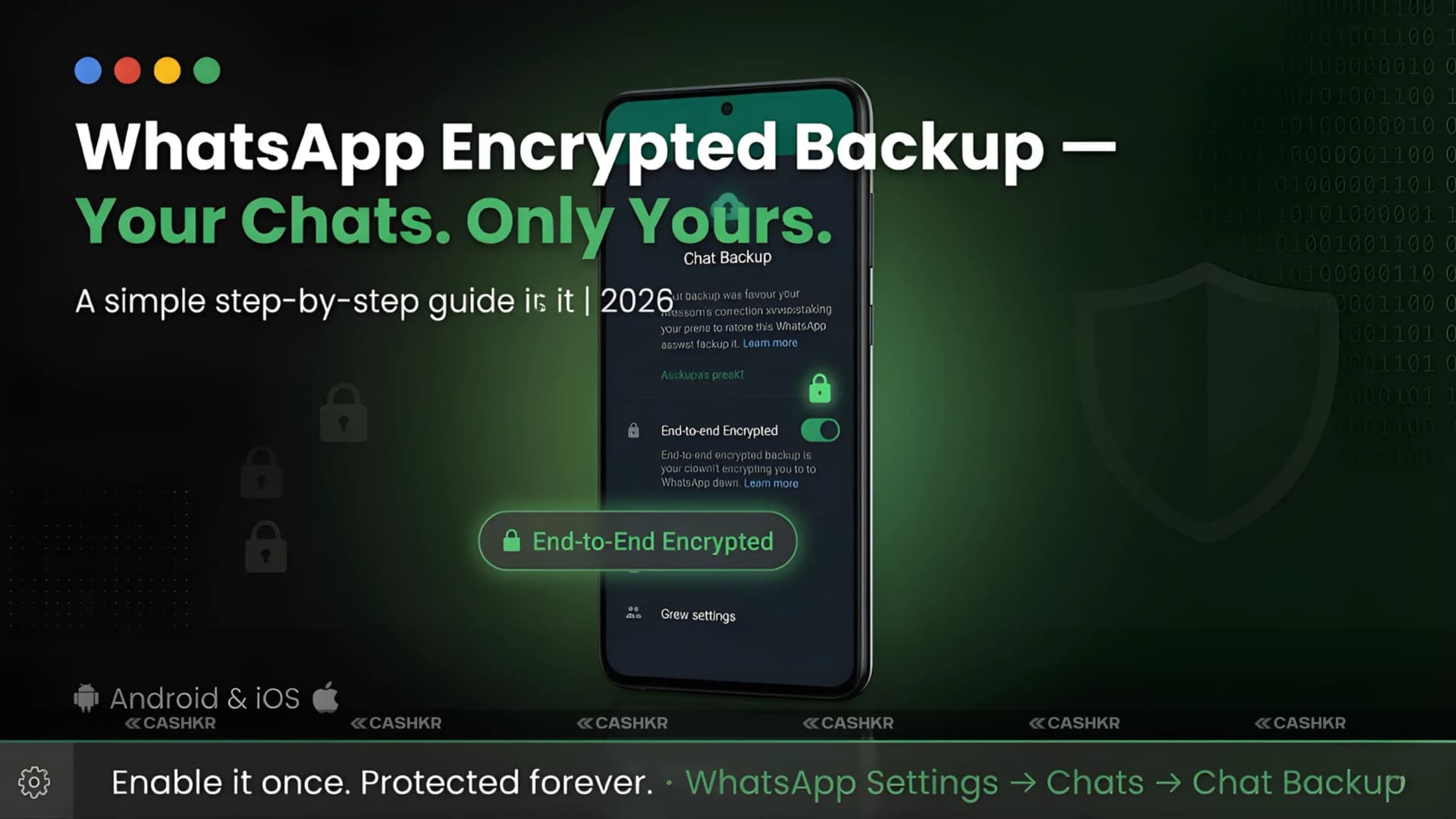
WhatsApp Encrypted Backup: The One Privacy Feature You Should Enable Right Now
WhatsApp messages stay encrypted on your phone and while being sent. However, for years, once they were backed up to Google Drive or iCloud, they lost that protection. End-to-end encrypted backup from WhatsApp fixes this issue. Now, your backup in the cloud gets the same protection as your chats. Only you have the passkey to unlock your backup. WhatsApp, Meta, Google, and Apple cannot access it. Without your passkey, no one can open your backup. This guide covers what this feature does, why it is important for everyday users, and how to turn it on for both Android and iPhone.
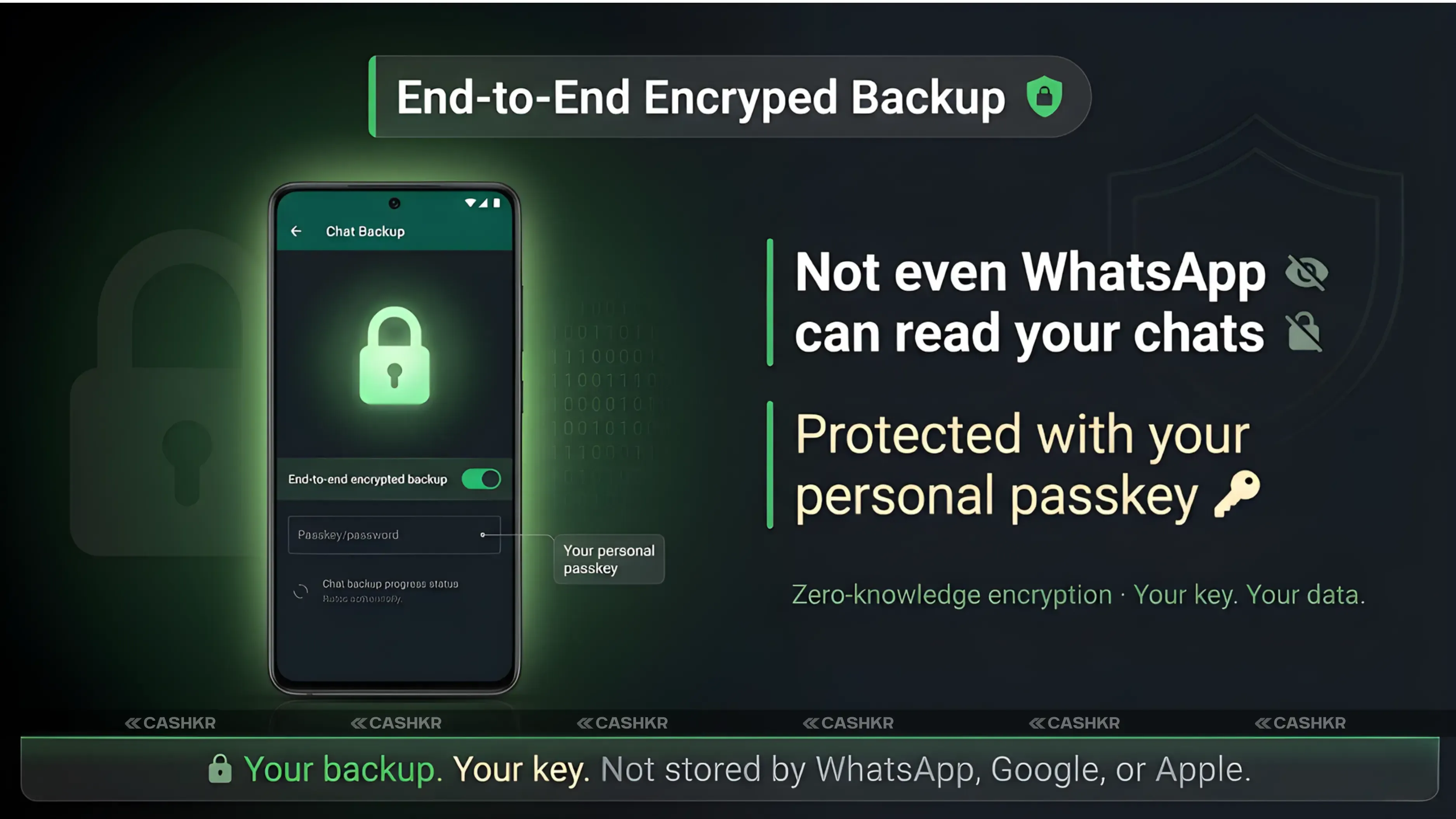
This feature encrypts your WhatsApp chat backup in Google Drive or iCloud using a personal passkey. Only you can restore the backup on a new device with that passkey. Even if someone gets into your cloud account, your chats stay protected.
Yaskar Jung Shahis a technology enthusiast with over 5 years of experience covering AI, machine learning, and has contributed to major tech publications worldwide. He holds a Master's Degree in Computer Science from leading institutions.
To see why this feature matters, it helps to know what problem it solves. Since 2016, WhatsApp has used end-to-end encryption for messages. This means your messages are scrambled before they leave your phone, and only the recipient’s phone can read them. Even WhatsApp cannot see your messages as they travel. Only you and the person you’re chatting with can read the content. The issue was with backups. When WhatsApp saved your chats to Google Drive or iCloud, the backup file was not encrypted on the cloud server. WhatsApp could not read your messages, but the cloud provider could access the backup. Anyone who got into your Google or Apple account could also see it. End-to-end encrypted backup solves this problem. Now, your backup is encrypted before it leaves your phone, using a key based on your passkey. The cloud service only gets an encrypted file it cannot read. Your passkey is never shared with WhatsApp, Meta, Google, or Apple. All encryption and decryption happen on your device.
Simply put, before this feature, your WhatsApp backup was like a locked house where the cloud provider had the key. Now, it is like a safe inside the house, and only you have the key.
Here are four practical reasons why this feature is important for everyday users:
Your chats stay safe even if your cloud account is hacked. If someone gets into your Google or Apple account, they still cannot read your WhatsApp backup. The file is encrypted and useless without your passkey. This is the main protection this feature offers.
Switching devices is safer. When you get a new phone, you restore your WhatsApp backup using your passkey. If someone steals your phone and tries to restore your backup on another device, they cannot access your chats without your passkey.
You get peace of mind for sensitive chats. If your WhatsApp has business, financial, medical, or other private conversations, encrypting the backup keeps that information safe from anyone who might access your cloud account.
Daily use stays simple. After setup, encrypted backup runs automatically in the background. You do not have to change anything. Backups happen as usual, just with added encryption. Who should use this? Anyone with important work chats on WhatsApp, anyone whose phone or cloud account has been compromised before, and anyone who often switches phones and wants their backup protected during transfers.
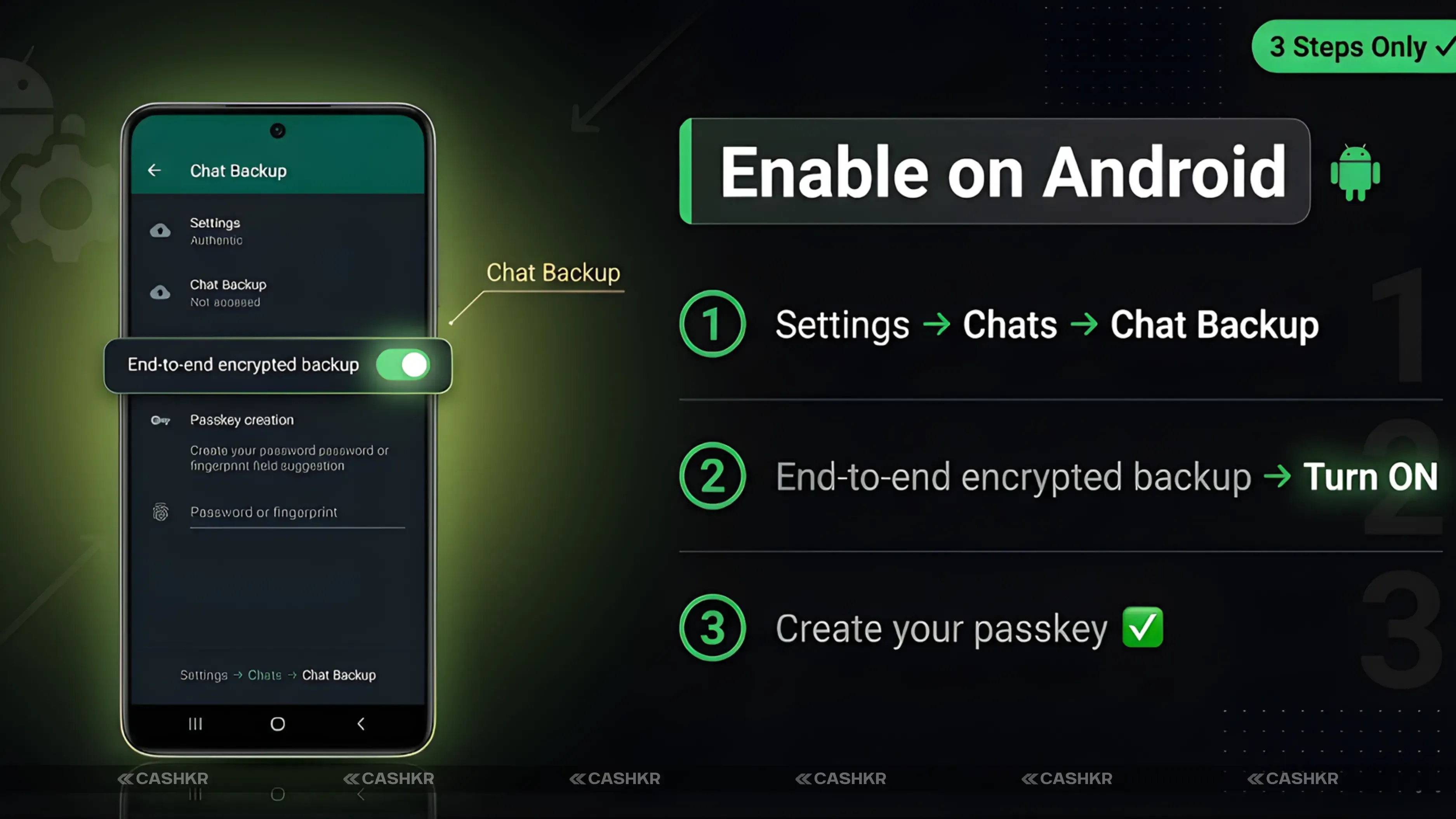
How to Enable WhatsApp Encrypted Backup on Android
Follow these steps on your Android phone. Your device must be running Android 9 or above.
Step 1: Open WhatsApp | Launch the app from your home screen or app drawer
Step 2: Open Settings | Tap the three-dot menu in the top right and select Settings
Step 3: Tap Chats | Find the Chats option in the Settings menu
Step 4: Select Chat Backup | Tap Chat Backup to open your backup settings
Step 5: Tap End-to-end encrypted backup | This option appears within the Chat Backup screen
Step 6: Tap Turn On | Confirm that you want to enable the feature
Step 7: Create your passkey | Choose a passkey using your fingerprint, face unlock, or screen lock PIN
Step 8: Follow the on-screen instructions | WhatsApp will complete the setup and begin your first encrypted backup
Once setup is finished, all future backups on Android will be encrypted with your passkey. The backup process stays the same, and you will not notice any changes in daily use.
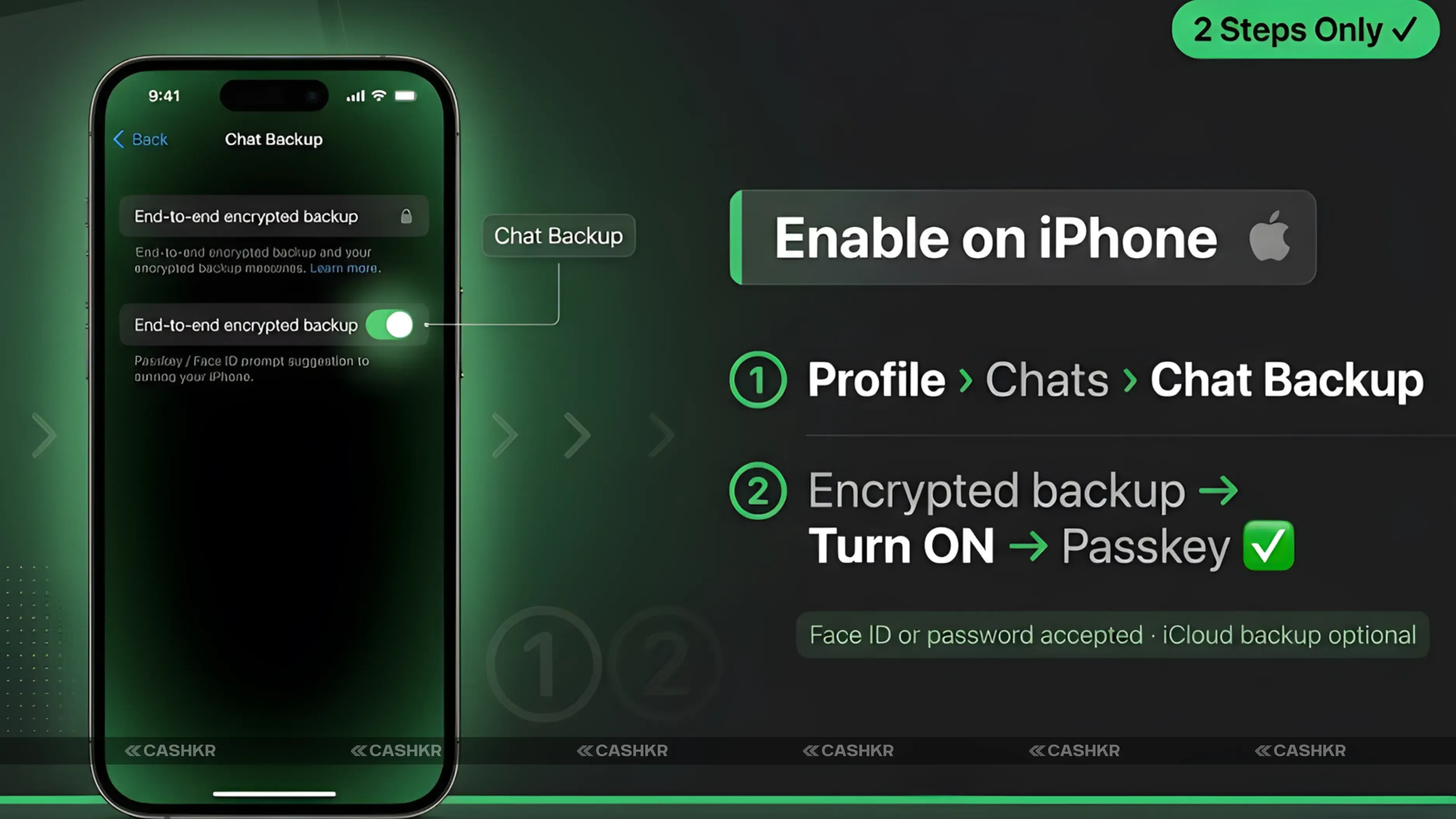
Follow these steps on your iPhone. Your device must be running iOS 16 or above.
Step 1: Open WhatsApp | Launch the app on your iPhone
Step 2: Tap your Profile icon | Your profile picture is in the top left of the Chats screen
Step 3: Tap Chats | Find Chats in the Settings list
Step 4: Select Chat Backup | Open your backup settings from the Chats menu
Step 5: Tap End-to-end encrypted backup | Find this option within the Chat Backup screen
Step 6: Tap Turn On | Enable the encrypted backup feature
Step 7: Create your passkey | Set your passkey using Face ID, Touch ID, or your iPhone passcode
After setting up on iPhone, your WhatsApp backup to iCloud is now encrypted with your passkey. Backups continue automatically, and iCloud cannot read the contents of your backups.
Passkey vs 64-Digit Key: Which Should You Choose?
When you set up encrypted backup, WhatsApp lets you choose between two types of encryption keys. Here is how they compare:
Ease of use
Very easy
Requires careful storage
Linked to
Device biometrics or screen lock
A 64-character random string
Recovery if lost
Reset via device security
No recovery possible
Security level
High (device-backed)
Very high (manual)
Best for
Most everyday users
Advanced users only
Risk
Low
High if key is lost
For most people, the passkey option is best. It works with your device’s security, like fingerprint, face unlock, or screen PIN, so you do not need to remember a new password. If you forget your device PIN, you can reset it using your phone’s usual recovery process. The 64-digit key is for users who want the highest level of security and are ready to manage a long, random key. You need to write it down, keep a copy in a safe place, and ideally store a backup copy elsewhere. If you lose this key, you lose access to your backup forever.
A warning about the 64-digit key: If you choose this option and lose the key, WhatsApp cannot help you recover your backup. There is no 'forgot my key' option and no customer support can restore access. This is by design—no one else has your key, not even WhatsApp.
What Happens When You Restore Your Backup
Knowing how the restore process works helps you prepare when switching phones. When you set up WhatsApp on a new phone and restore from backup, WhatsApp will ask for your passkey before starting. Enter your passkey to decrypt the backup, and your chats, media, and call history will be restored just as before. If you use fingerprint or face unlock as your passkey, you might need to use your screen PIN during a restore, since your new phone does not have your biometric data yet. WhatsApp offers a PIN backup for this reason. If you move from Android to iPhone or the other way, encrypted backup still works. The passkey is not tied to your device. You just need to know your passkey or PIN, no matter what phone you are using.
Tip for safe device switching: Before you sell or reset your old phone, check that your encrypted backup is complete. Look at the last backup date in WhatsApp Settings, then Chats, then Chat Backup. Only reset your old phone after you see a recent backup date.
Important Things to Know Before You Enable It
If you forget your passkey, you lose your backup. This is the most important thing to remember. Keep your passkey or PIN somewhere safe and easy to find. If you use your screen lock PIN, make sure you do not forget it.
You can turn off encrypted backup in the settings menu. If you do, your next backup will not be encrypted and will be stored like a regular backup. You can turn encrypted backup back on whenever you want.
Old backups might not be encrypted. If you had an unencrypted backup before turning on this feature, that file stays unencrypted. Only new backups made after enabling the feature are protected.
You need Android 9 or above, or iOS 16 or above, to use this feature. Older versions do not support it.
Encrypted backups use about the same storage space as unencrypted ones. Encryption does not make the file much bigger or smaller.
Final Verdict
WhatsApp’s end-to-end encrypted backup is one of the most important privacy features you can get on any messaging app in 2026. Setup takes less than three minutes. Your daily use does not change at all. The protection against cloud account hacks, device theft, and outside access is real. There is no cost, no subscription, and you do not need any special tech skills—just follow the steps in this guide. The passkey option makes this easy for anyone who can unlock their phone. Turn it on now. For almost every WhatsApp user, it is the right choice.
Quick tip: Open WhatsApp, go to Settings, tap Chats, then Chat Backup, then End-to-end encrypted backup, tap Turn On, and set your passkey. It takes less than three minutes, and your chats are protected.
FAQs
1. Is WhatsApp's end-to-end encrypted backup safe?
Yes. The encryption is applied on your device before the backup is uploaded. The cloud provider receives an encrypted file it cannot read. Not even WhatsApp or Meta can access your backup content.
2. What happens if I forget my WhatsApp backup passkey?
If you forget your passkey, you cannot restore your encrypted backup. WhatsApp cannot recover it for you. If you used your phone’s screen lock PIN as the passkey, you may be able to reset your PIN through your phone’s account recovery process, but the WhatsApp backup key is separate.
3. Can WhatsApp read my encrypted backup?
No. The encrypted backup is designed so that WhatsApp, Meta, Google, and Apple cannot read the content. Only someone with your passkey and access to your backup file can decrypt it.
4. Does encrypted backup work when I switch from Android to iPhone?
Yes. Encrypted backup works across platforms. When restoring on a new phone, whether Android or iPhone, you enter your passkey, and WhatsApp decrypts and restores your chats.
5. Which is better: a passkey or a 64-digit key for WhatsApp backup?
Passkey is recommended for most users. It integrates with your device security and is easy to use. The 64-digit key provides stronger protection but requires you to securely store a long, random key. Losing it means permanently losing backup access.
6. Is WhatsApp's encrypted backup available on all phones?
It requires Android 9 or above for Android users and iOS 16 or above for iPhone users. Most phones in active use in 2026 meet these requirements. Older unsupported devices cannot use the feature.
7. Does an encrypted backup cost extra storage?
No. Encrypted backups use approximately the same storage space as unencrypted backups. The encryption process does not significantly increase the file size.
8. Can I disable WhatsApp's encrypted backup after enabling it?
Yes. Go to Settings, then Chats, then Chat Backup, then End-to-end encrypted backup, and select Turn Off. Your next backup will be stored unencrypted. You can re-enable it at any time.
9. What happens to my old unencrypted WhatsApp backup after I enable the feature?
Your existing backup files remain unchanged. Only new backups created after enabling the feature are encrypted. WhatsApp does not retroactively encrypt old backup files.
10. Does WhatsApp notify anyone when I enable encrypted backup?
No. Enabling encrypted backup is a private setting change on your device. No contacts, groups, or third parties are notified.
If you want to sell your old devices, then click here.